

- IDE Integration
- KiloCode
IDE Integration
KiloCode
Connect CoreThink's advanced reasoning capabilities directly to your VS Code with KiloCode extension for AI-powered coding assistance.
Prerequisites
Before you begin, make sure you have:
- Visual Studio Code installed
- A CoreThink account with an active API key
- Internet connection
Step 1: Install KiloCode Extension
- Open VS Code
- Navigate to the Extensions view (Ctrl+Shift+X or Cmd+Shift+X)
- Search for “Kilo Code AI Agent”
- Click Install on the extension
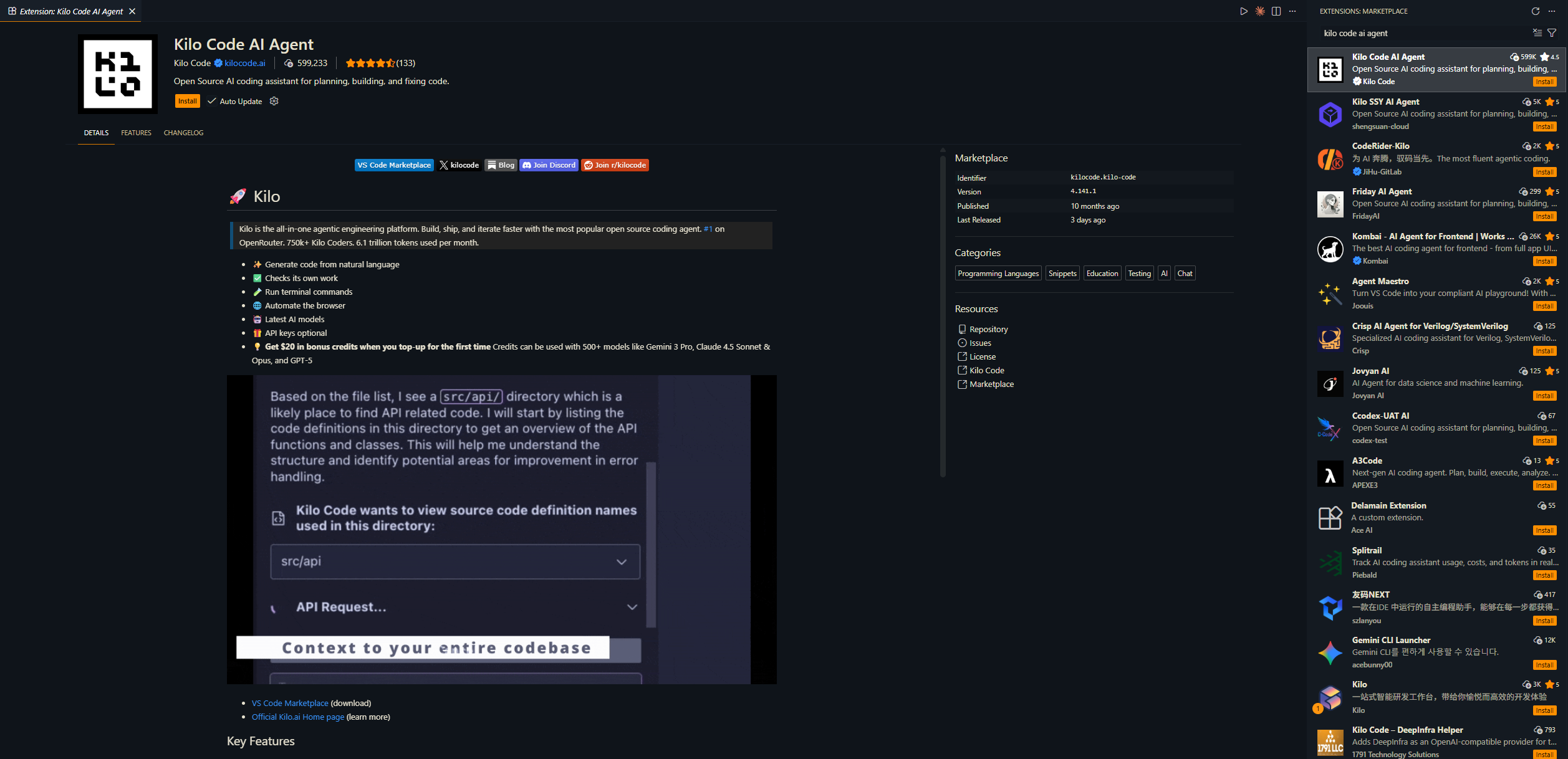
Alternative: Install directly from the VS Code Marketplace
Step 2: Sign in to KiloCode
- Click on “Get Started” in the KiloCode extension
- Complete the sign-in process for KiloCode
- Navigate to the Settings tab
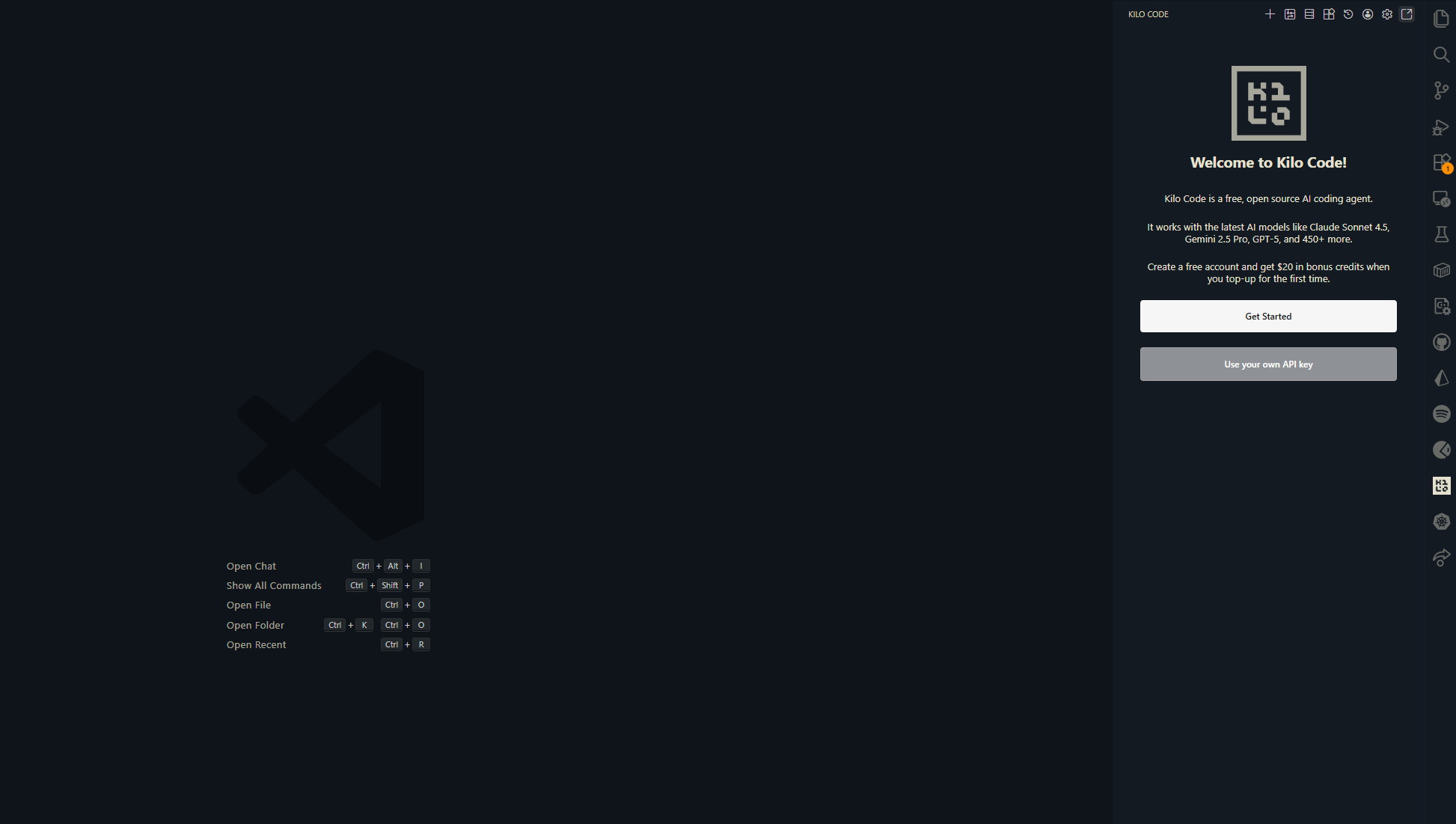
Note: By default, KiloCode uses Grok-fast. You need to configure it to use the Corethink model.
Step 3: Get Your CoreThink API Key
- Go to CoreThink Dashboard
- Sign in to your account
- Navigate to your Dashboard
- Create an API Key (copy it immediately - you won’t see it again)
- Create an organization if you don’t have one
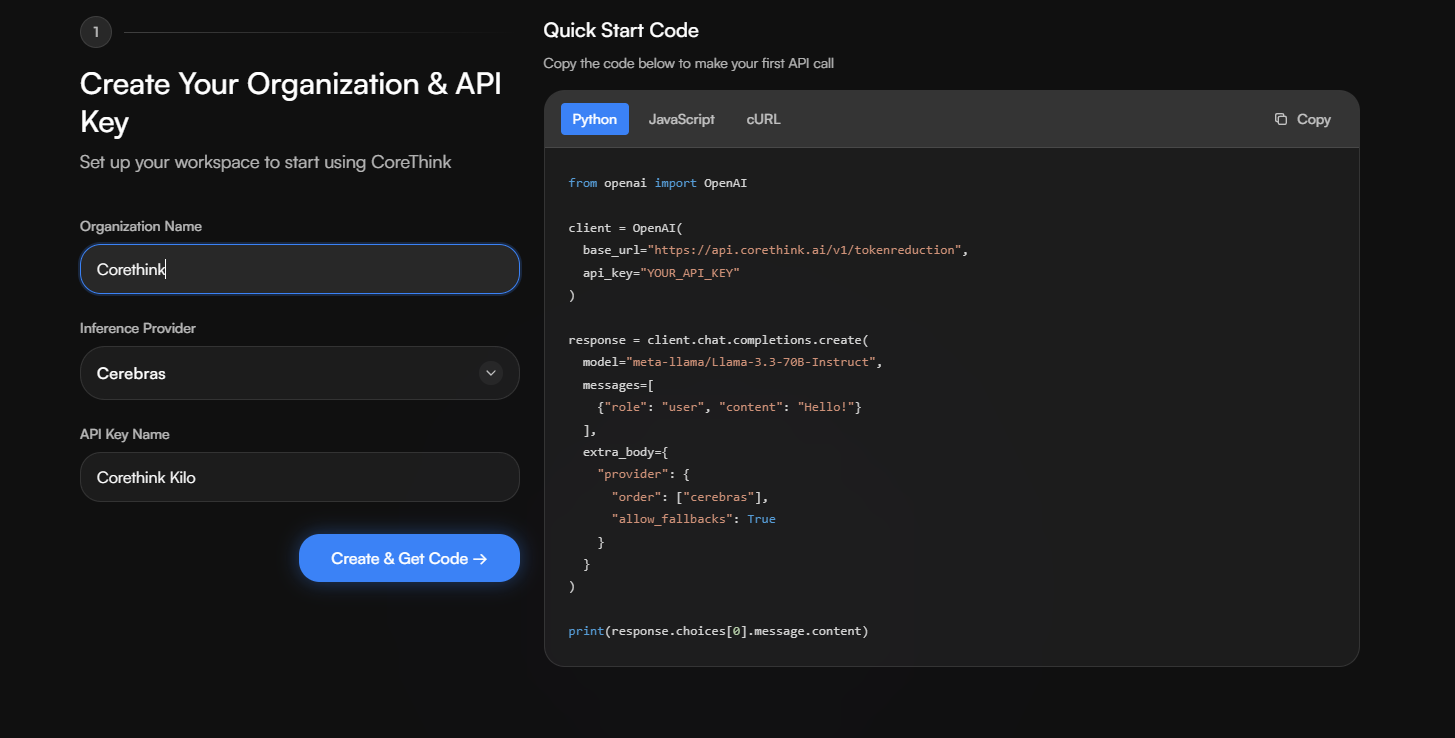
Step 4: Configure CoreThink in KiloCode
-
Open KiloCode’s Settings Tab in VS Code
-
Configure the following settings:
API Provider:
- Choose:
OpenAI Compatible
Base URL:
- Enter:
https://api.corethink.ai/v1/code
API Key:
- Paste your CoreThink API key
Model:
- Add custom model:
corethink
- Choose:
-
Click Save and Done
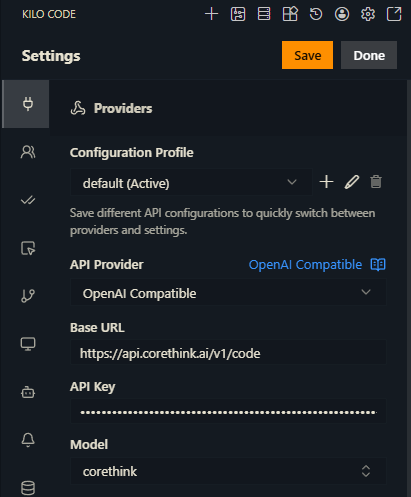
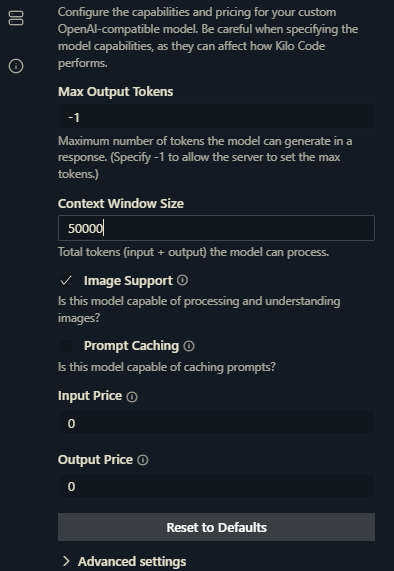
Step 5: Adjust Advanced Settings
- In the same settings tab, scroll down to advanced options
- Image Support: Deselect this option (for better performance)
- Context Window Size: Set to
50000(supports up to 128k) - Click Save and Done
You should now see the chat screen ready to use with Corethink AI!
Troubleshooting
Connection Issues
- Verify your API key is correct and active
- Ensure you’re using the correct endpoint:
https://api.corethink.ai/v1/code - Check your internet connection
- Try restarting VS Code after configuration
Model Not Found
- Ensure you entered
corethinkexactly (case-sensitive) - Check that the base URL is correct:
https://api.corethink.ai/v1/code - Verify your API provider is set to “OpenAI Compatible”
- Reload the KiloCode extension
Slow Response Times
- Check your internet connection
- Try reducing the context window size
- Disable image support if not using images
- Consider upgrading your plan for higher rate limits
Extension Not Connecting
- Restart VS Code
- Reload the KiloCode extension
- Verify all settings are saved correctly
- Check that the extension is enabled in VS Code Extensions view
Next Steps
- Explore the API Reference for advanced configuration
- Check out Examples for common use cases
- Review Best Practices for optimal results